The Red X Illusion: When Conditional Access Says “No” but Still Applies
Table of contents
- The confusing red X in Conditional Access
- How device filters really work
- Positive vs negative logic in device filters
- Why your negative device filter shows a red X
- Reverse checking the positive filter approach
- Reading the sign‑in log correctly
- Wrapping up
The confusing red X in Conditional Access
If you have ever seen the “Corporate needs you to find the difference between these two pictures” meme, Conditional Access has its own version of it.
In the sign‑in logs, Matched and Not matched can both mean “this policy applied” when device filters are involved.
Admins often assume that a red X and Not matched on a condition means “this condition did not apply, so the policy should not have applied either.”
With device filters, that mental model breaks down – and that’s exactly what this post is about.
How device filters really work
Device filters let you target Conditional Access policies at devices based on Entra ID device attributes such as deviceId, displayName, operatingSystem, deviceOwnership and isCompliant.
They are configured per policy under Conditions → Filter for devices, where you can choose to either include or exclude devices that match the filter expression.
Behind the scenes, Microsoft Entra uses device authentication to evaluate these filter rules, and only devices that actually exist in the directory have usable attribute values.
For devices that are not registered in Entra ID, all device properties are treated as null, which means the filter cannot positively match attributes such as device.isCompliant.
Positive vs negative logic in device filters
This behavior becomes important when you decide whether to use positive or negative operators in your device filter.
Microsoft’s documentation explicitly recommends using negative operators when you want your policy to apply to unregistered devices, because positive operators like -eq, contains, or startsWith can only match when a device object – and therefore the attribute – actually exists.
A classic example is a policy that should only allow access from Intune‑compliant devices.
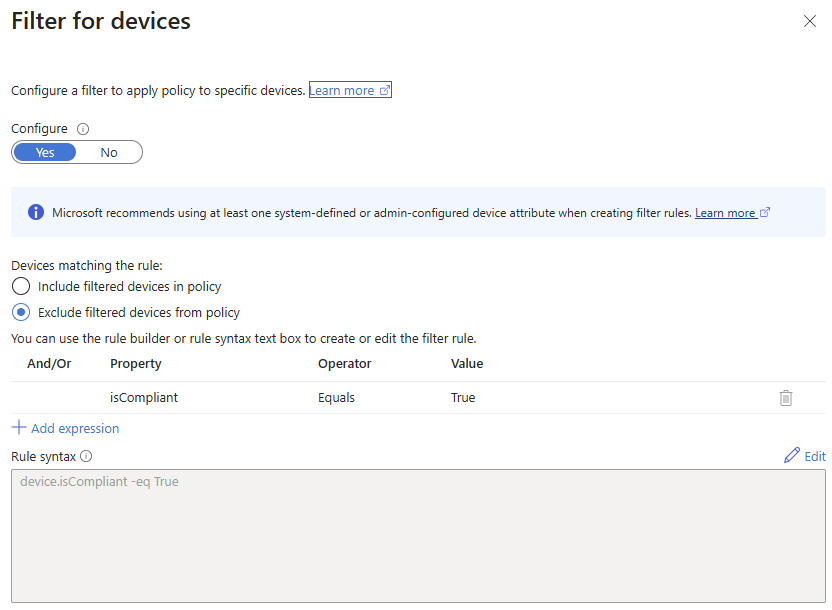
One common design pattern is to create a block policy for all devices and then exclude the devices where device.isCompliant -eq True – effectively saying “block everything except compliant devices,” which is implemented as a double negative. If you want to learn more about the term “double negative”, I recommend you to check out this blog post by Per-Torben Sørensen.
Why your negative device filter shows a red X
Now imagine a sign‑in from a browser on a device that Entra ID treats as Unknown – for example, because there is no registered device object or no device claims in the token.
In that case, the attributes used by the filter (device.isCompliant in our example) are null, so the expression device.isCompliant -eq True simply does not match.
Because the filter is configured as Exclude filtered devices from policy, “does not match” actually means:
- The device is not excluded,
- Therefore it remains in scope of the policy,
- So the policy continues to evaluate and may still result in a block or in additional requirements such as MFA.
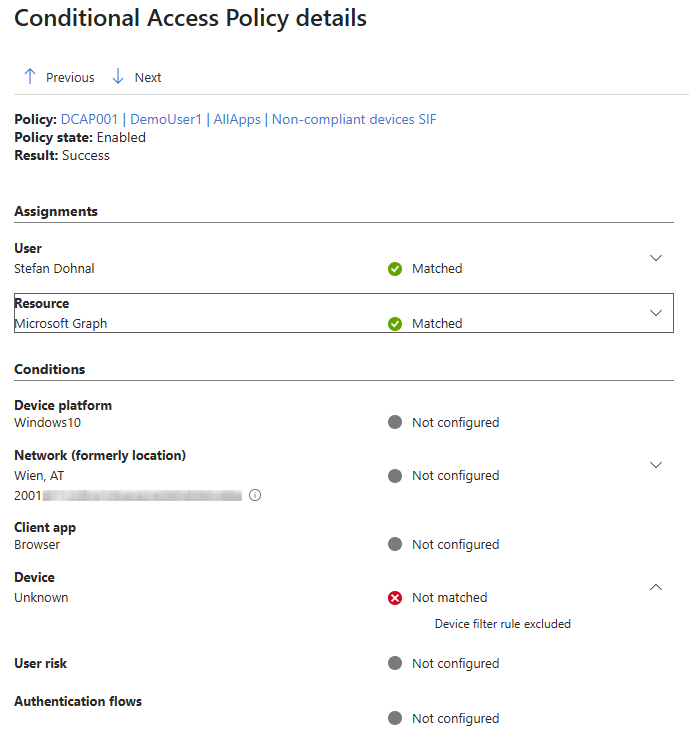
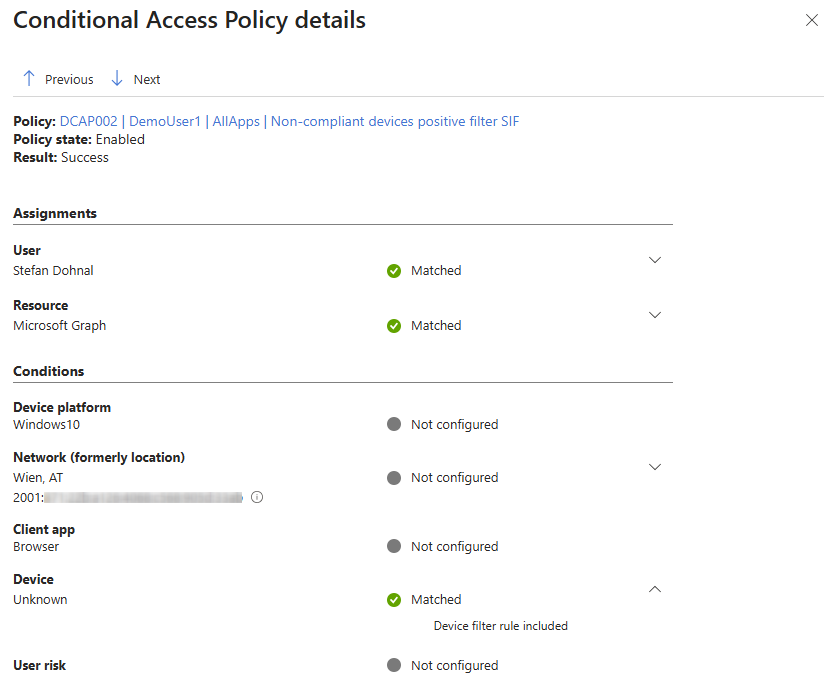
In the sign‑in log, this shows up as Device: Unknown – Not matched – Device filter rule excluded, with a red X next to the Device condition – while the overall policy result is still Success (meaning “this policy applied”).
The red X only tells you that the filter expression did not match; it does not mean the policy was skipped.
Reverse checking the positive filter approach
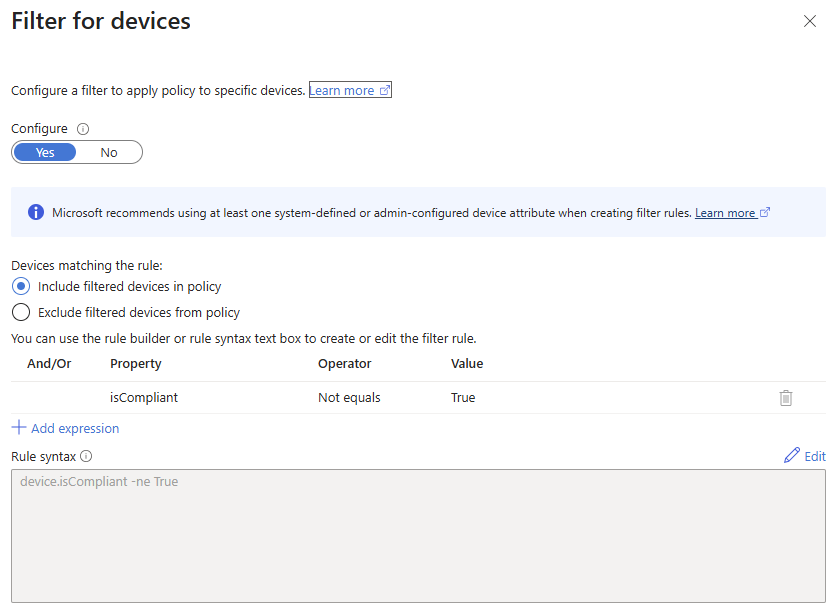
In my showcase scenario I created another demo policy applying the same effect - only difference is the use of a include filter approach with expression device.isCompliant -ne True. This policy applies as well and gives a green check mark instead of the red X:
Reading the sign‑in log correctly
Microsoft’s troubleshooting guidance reminds us that Conditional Access policies only apply when all conditions are satisfied or not configured.
For a negative device filter, “satisfied” includes the case where the device does not match the filter, because the condition “exclude matching devices” has been evaluated and the device was not excluded.
So when you see:
- Result: Success for the policy,
- A red X on Device – Not matched – Device filter rule excluded,
you should read this as: “the device filter was evaluated and did not exclude this device, so the policy applied.”
Wrapping up
- When you design policies with Exclude filtered devices from policy, remember that devices that fail the filter expression (including Unknown devices) will still be in scope and therefore affected.
- Use negative operators strategically when targeting unregistered or unknown devices, as recommended in Microsoft’s documentation.
- When troubleshooting, focus on the overall policy result and the Assignments vs. Conditions logic instead of reading every red X as “policy not applied.”
Once you internalize this “double negative” logic, the Conditional Access sign‑in details make a lot more sense – and those confusing red Xs in the Device section stop being scary and start being a useful clue to how your device filters are really working.